
Z-Thru
See accessibility issues on local HTML files as you build.
Z-Thru checks HTML files you open from your computer, highlights each affected element on the page, and explains how to fix it. No server, publishing, or internet connection needed.
Coming soon to the Chrome Web Store
See how it works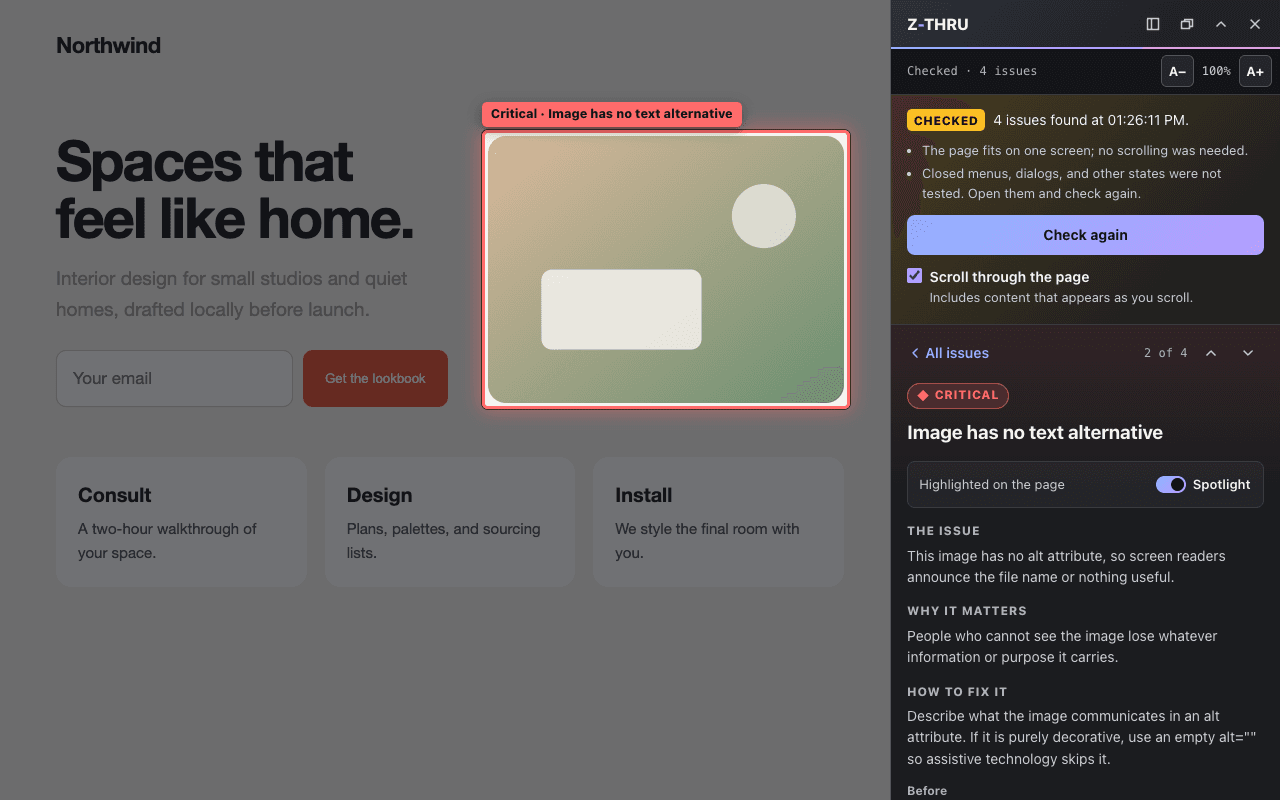
How it works
Open your file
Open an HTML file from your computer in Chrome. Its address starts with file:///.
Check page
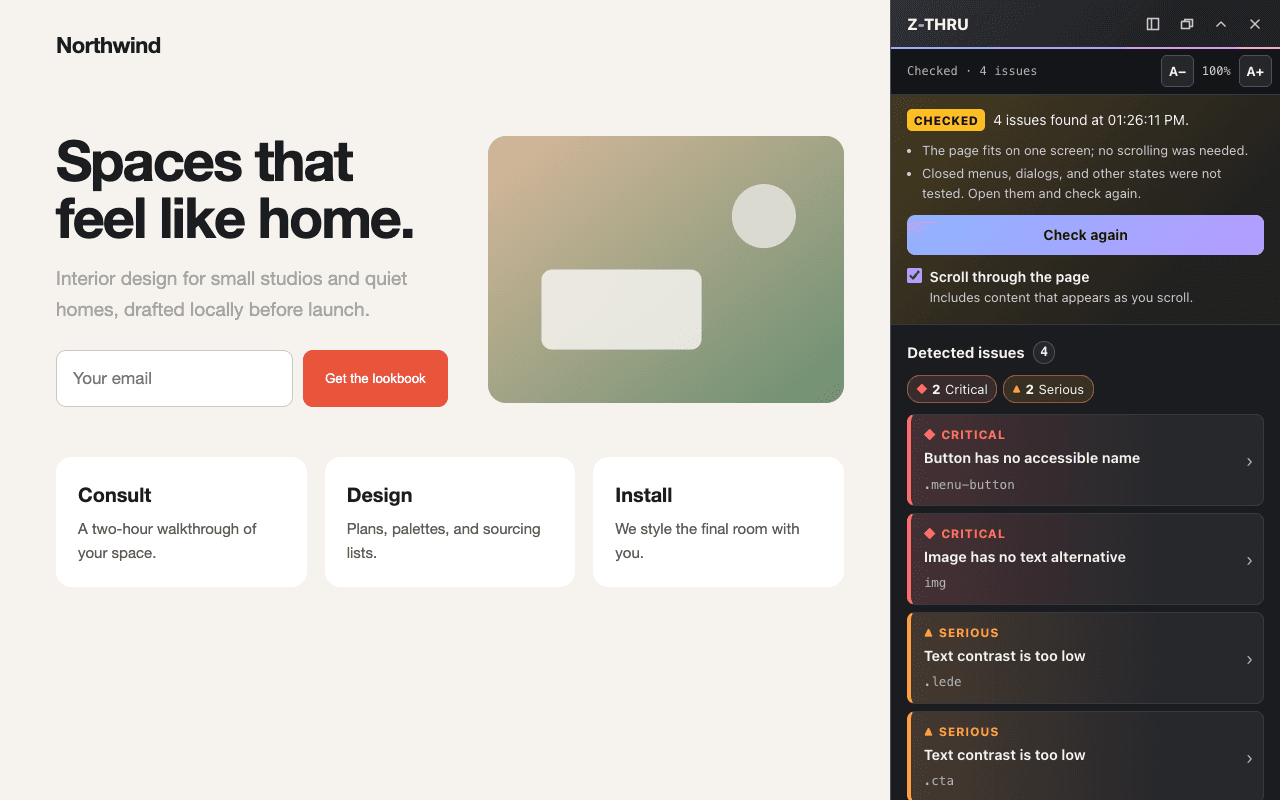
Click the Z-Thru icon, choose Open inspector, then Check page. Nothing is checked until you ask.
Select an issue
Issues are listed most severe first. Select one and the page dims around the exact element, with what is wrong, why it matters, and how to fix it.
Fix it
Edit your source file, then refresh the page.
Check again
Choose Check again to confirm the issue is gone.
Key features
See exactly where
Selecting an issue dims the page around the affected element and outlines it in its severity color: critical red, serious orange, moderate yellow, minor blue-gray. Each severity also has its own label and shape.
Plain-language guidance
Each issue explains what is wrong, why it matters, and how to fix it, with a code example where useful.
Contrast you can verify
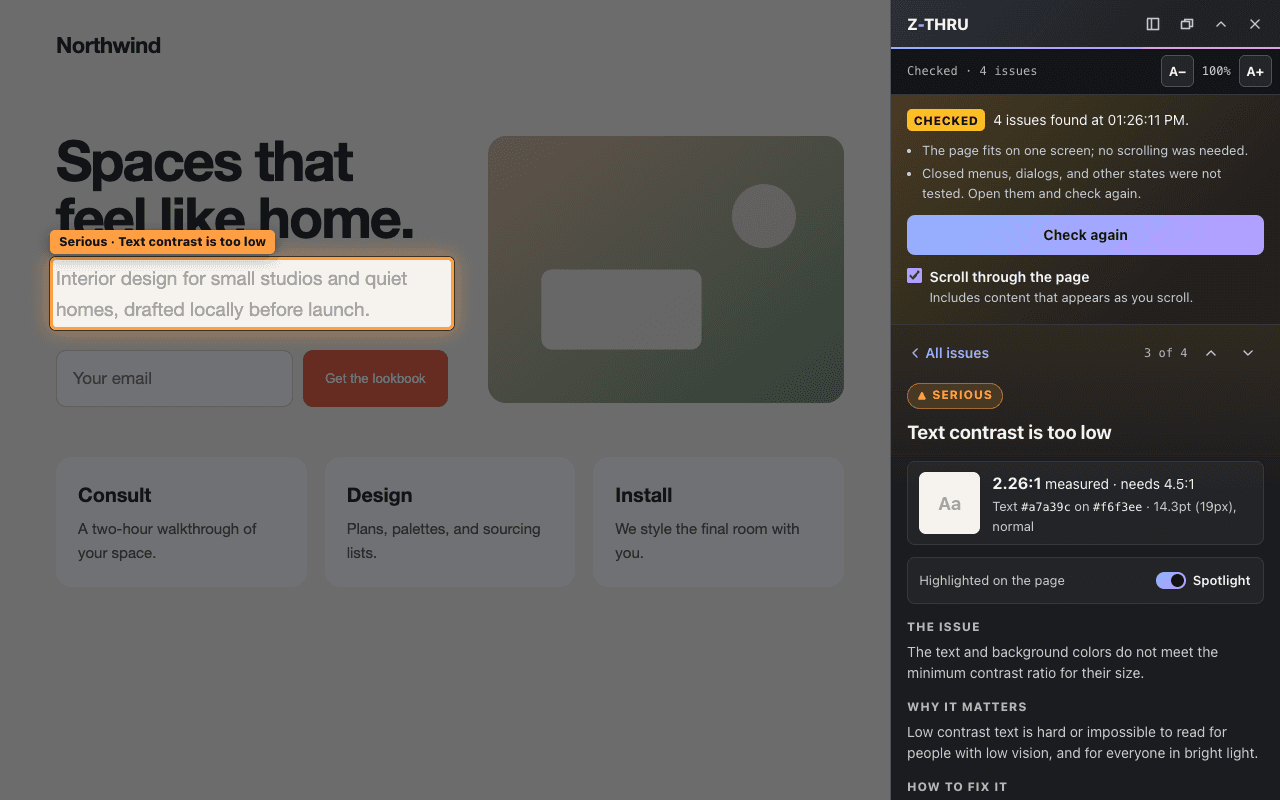
Contrast issues show the measured text and background colors and the ratio against the required one, so you can see exactly why.
Checks the whole page
Z-Thru scrolls through the page to include content that fades in or loads as you scroll, then returns you to where you were.
Runs only when you ask
Nothing checks in the background. If the page changes after a check, results are marked Needs recheck until you check again.
WCAG 2.0, 2.1, and 2.2 rules
Tests against the A and AA rules using the axe-core engine, bundled into the extension so it runs offline.
Needs human review
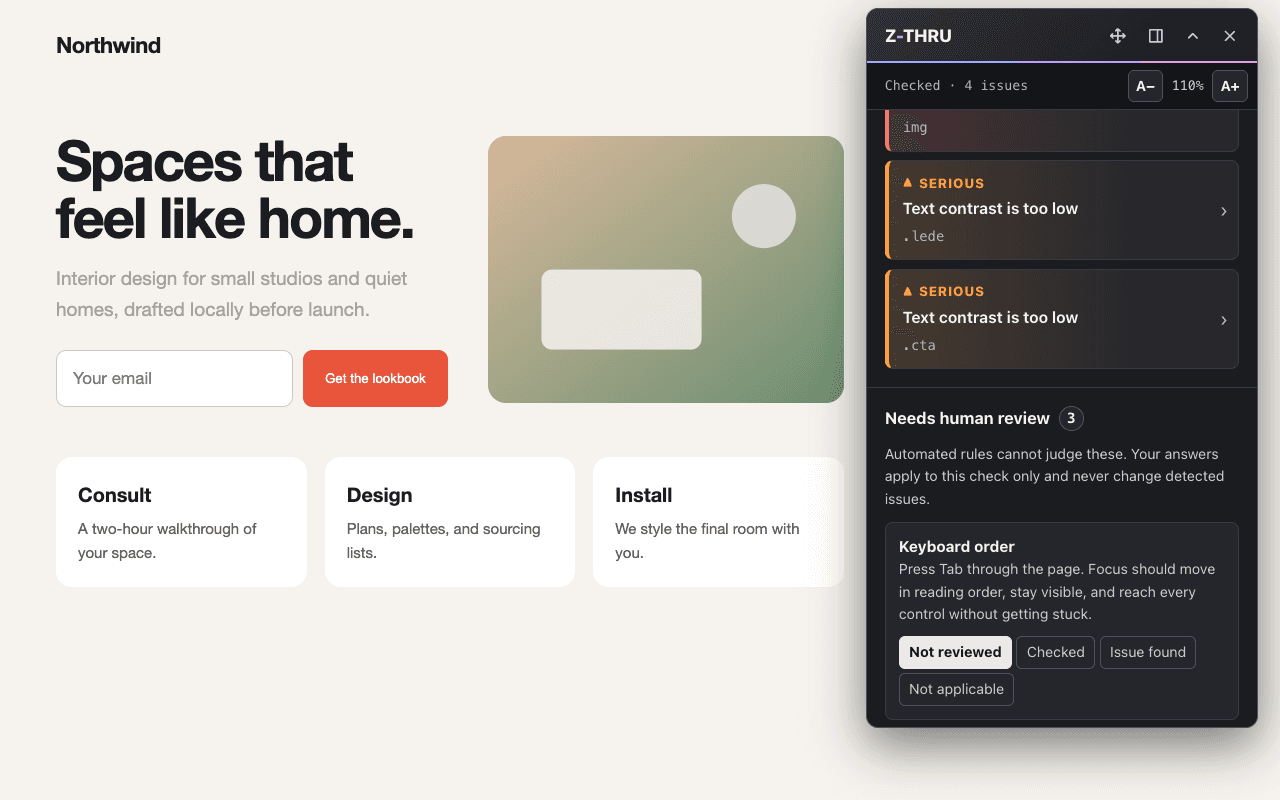
A separate section lists checks no automated rule can make, like keyboard order and meaningful image descriptions, so you know what is left to you.
Stays out of your way
Dock the inspector to either edge or float it. It covers the page without resizing it, and its text size adjusts from 90% to 150%.
Results saved on your computer
The latest results for each file are saved locally, and you can delete them with one click.
What it can’t tell you
Automated checks find many common problems, but they cannot tell you that a page is accessible. When Z-Thru finds no issues, it means only that none of its rules failed in the state that was checked. It is not a statement of WCAG, ADA, or any other compliance.
- Many checks need a person, like whether alt text is meaningful or the keyboard order makes sense. Z-Thru lists them under Needs human review.
- A check covers the page as it is at that moment. Closed menus, dialogs, error messages, hover states, and other screen sizes are not tested, so open each state and check again.
- Embedded documents such as iframes, and closed shadow roots, are not checked.
- Only HTML files opened from your computer in Chrome. Websites, localhost, and other browsers are not supported yet.
Read the full list of limitations
Z-Thru finds many common accessibility problems quickly. It cannot tell you that a page is accessible.
Automated rules cover part of accessibility
- Z-Thru runs the axe-core rules for WCAG 2.0, 2.1, and 2.2 at levels A and AA. Many success criteria cannot be judged automatically, such as whether alt text is meaningful or whether the keyboard order makes sense.
- No automated issues found means only that none of these rules failed in the state that was checked. It is not a statement of WCAG, ADA, or any other compliance.
- Needs human review lists checks you must do yourself. Your answers are recorded separately and never mark detected issues as fixed.
What a check covers
- With Scroll through the page on (the default), Check page scrolls the page, and any large area that scrolls on its own, from top to bottom. It waits for animations at each screen and checks as it goes, so content that fades in, loads, or hides again as you scroll is included. It then returns you to where you were. Very long pages stop after 40 screens, and the result says so.
- With it off, only what is visible without scrolling is checked, and the result says content may be missing.
- Closed menus, dialogs, error messages, hover states, and other screen sizes are not tested. Scrolling never clicks, opens menus, or submits forms. Open each state and check again.
- Z-Thru waits for animations before checking (up to 3 seconds at first, then 2 seconds per screen). Contrast, link color, and target size are judged only while the element is on screen. A failure seen on screen at any scroll position is reported, such as a dimmed inactive menu link, and styles an element has only while off screen are ignored. Animations that never finish, such as endless carousels, may still be checked mid-motion; the result says so.
- When a later screen shows an earlier problem resolved (for example, content loaded into an empty area), the problem is not reported. An element that is simply hidden again keeps its problem.
- A check without scrolling is labeled View only when more of the page is below, even if nothing was found. It judges contrast only for what is on screen; other rules still cover the whole page.
When results go stale
- When page content changes after a check, or attributes like
hiddenoraria-expandedchange, results are marked Needs recheck. Z-Thru never checks again on its own. - Changes to only
class,style,data-*,src, orsrcsetdo not mark results stale, so scrolling through scroll animations does not invalidate them. A menu opened only by toggling a class is therefore not noticed; check again after opening it. - Changes made by other extensions that add elements to pages also count as page changes.
Coverage limits
- Embedded documents (iframes, frames, objects, embeds) are not checked. Z-Thru reports how many were skipped.
- Closed shadow roots in web components cannot be read by any extension.
- Only local files at
file:///addresses are supported. Websites (http/https),localhost, and Chrome's own pages are not supported in this version. - If some rules fail to run, the result is marked Partial and names them. A missing issue in a partial result is not evidence of a fix.
Saved results
- Results are saved per file address. Renaming or moving a file starts fresh; addresses with different query strings (
?variant=2) count as different files. The#fragmentis ignored. - Saved results are shown as Needs recheck, without highlights, until you check again, because the file may have changed.
- Your Needs human review answers belong to one check and reset on the next.
Highlights
- A selected issue can only be highlighted when its element takes up space on screen. Hidden or zero-size elements, and anything in the page head (like the title), are explained instead.
- If the inspector covers the element, use Move inspector out of the way.
Privacy
Z-Thru works entirely on your computer. It does not upload your page or findings, and it has no accounts, servers, analytics, telemetry, or AI services. Nothing Z-Thru reads or stores leaves your computer.
Results are kept in Chrome’s extension storage on your computer only. You can delete them for one file or all at once, and uninstalling Z-Thru removes them. The page you check may still load its own fonts or scripts from the web; that comes from your page, not from Z-Thru.
Install
Coming soon to the Chrome Web Store
Z-Thru is free to use. It runs in Chrome 114 or later and checks HTML files opened from your computer.
After you install
- Go to
chrome://extensionsand choose Details under Z-Thru. - Turn on Allow access to file URLs. Chrome requires this, and Z-Thru cannot turn it on for you.
- Optionally, pin Z-Thru from the puzzle-piece menu so its icon stays in the toolbar.
Z-Thru is proprietary software, free for personal and commercial work. Read the Z-Thru license. Questions: support@sirux.io